
Every new hire gets two things on day one: a job and its limits. "You own hiring. You can schedule interviews; offers go through me." People keep the job in their heads and the limits in their conscience.
An AI agent has neither. It has whatever its prompt says this time, and a prompt is easy to edit or soften over time, including by the agent. In Skyflo, your AI chief of staff keeps both in an area: a Mac folder where agents update the playbook while Skyflo restores your limits and rules word for word after every mission.
How do Skyflo areas combine a living playbook with locked limits?
An area is a folder on your Mac, such as ~/Skyflo/Hiring, containing a playbook, goals and a journal. Its AGENTS.md holds two protected blocks: the area's authority (autonomy level, daily mission cap, allowed folders and agent) and your rules. After every mission Skyflo reconciles both blocks against its own record and restores them verbatim if an agent changed them.
Every area starts by preparing work for your approval. Once its prepared work has been approved and completed, Skyflo offers to move it to Acts, and you decide. Areas shipped in Skyflo 1.8.0, and since 1.8.3 Skyflo suggests your first areas from one sentence about your company.
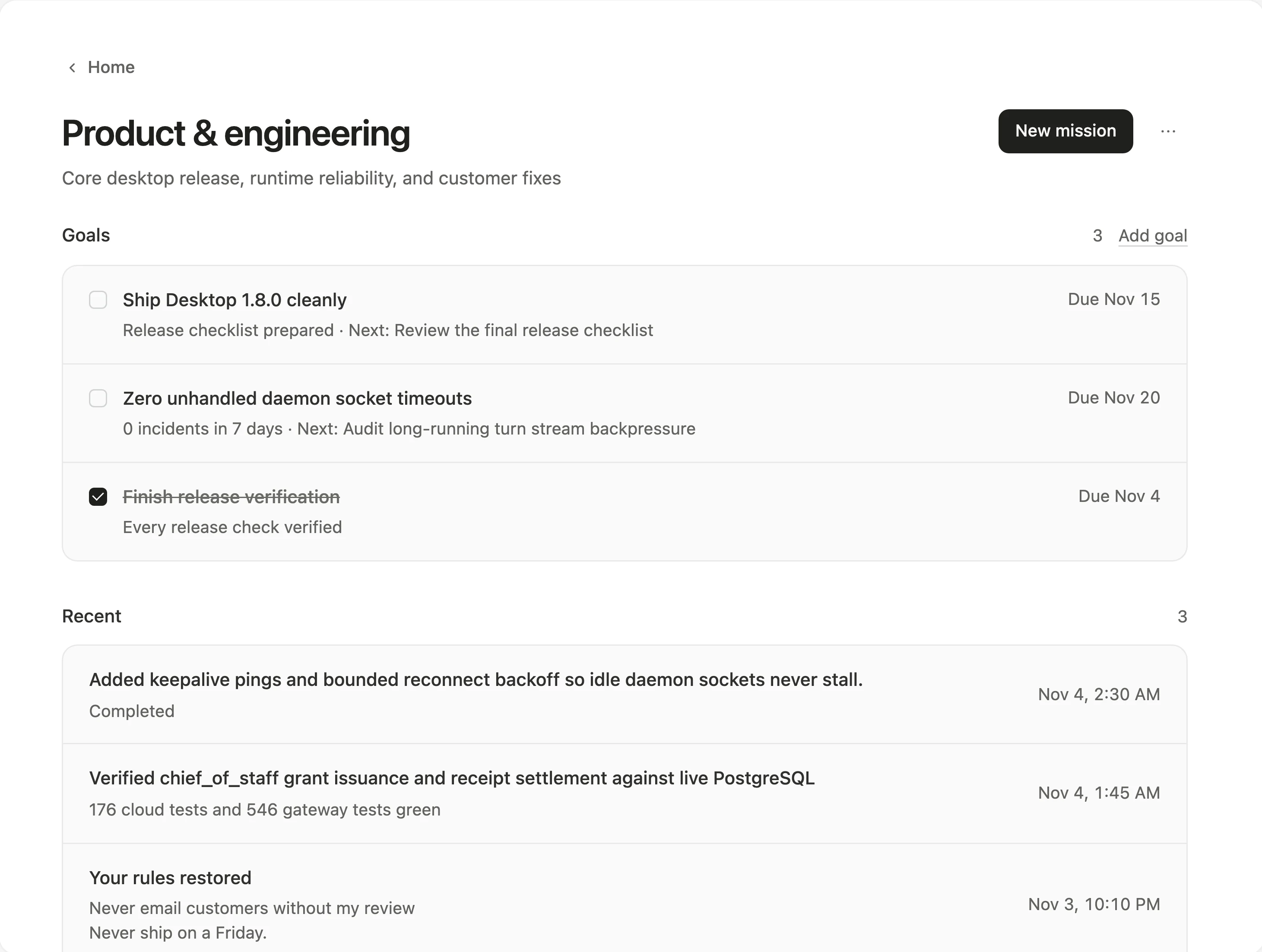
What can an agent edit inside an area, and what stays locked?
Every area folder splits what agents maintain from what Skyflo locks and reconciles after each mission, backed by a hidden history inside the folder so you can inspect how a playbook evolved.
| File or block in the area folder | What it holds | What happens if an agent edits it |
|---|---|---|
Authority block in AGENTS.md | Level (Prepares or Acts), daily mission limit, allowed folders and agent | Restored word for word from Skyflo's record; logged in journal.md as Authority restored |
Your rules block in AGENTS.md | Plain-English rules you wrote | Restored verbatim and in order; logged as Your rules restored, and new agent lines move to Learned rules |
Playbook (AGENTS.md and playbook/) | Living instructions (AGENTS.md stays within 200 lines; longer notes move to playbook/) | Kept and tracked in the folder's hidden history |
goals.md and journal.md | Current goals from Skyflo and a log of missions and restorations | goals.md is rewritten from your goals in Skyflo; journal.md keeps the log |
AGENTS.mdPrepares or Acts), daily mission limit, allowed folders and agentjournal.md as Authority restoredAGENTS.mdAGENTS.md and playbook/)AGENTS.md stays within 200 lines; longer notes move to playbook/)goals.md and journal.mdgoals.md is rewritten from your goals in Skyflo; journal.md keeps the logThe authority block opens with a plain warning to every agent that reads it: Skyflo keeps this section, and edits are undone. An agent can get better at the job without ever giving itself a bigger one or raising its own daily cap.
How does an area earn more authority?
An area runs at one of two levels:
- Prepares: drafts and asks first.
- Acts: acts, then tells you.
Every new area starts at Prepares, with a default limit of six missions a day. Once work it prepared has been approved and completed, Skyflo offers to promote the area to Acts, attaching those missions as evidence. Nothing changes until you accept, matching the same earned-trust model used in Autonomy a Skill has to earn. You can also change the level, daily limit, folders or agent yourself anytime on the area's page.
Work that belongs to no area still runs, inside a General folder under your Skyflo root.
How do area suggestions work from a one-sentence brief?
Describing your company is enough to start. In the first-run tour, or later from Manage areas on Home, Skyflo asks: What does your company do? A sentence or two is enough.
Skyflo suggests matching areas with a description and first goals for each, and you choose what to keep, rename or skip. Suggestions matching areas you already have are left out. A small agency might get Clients, Hiring and Finance; a SaaS founder might get Customers, Releases and Fundraising. Duplicate area names are refused, and a new area never takes over the folder of one you removed.
Set up your areas
- Download Skyflo for Mac, or update to 1.8.3. Home and areas come with Core and above.
- Open Home and choose Manage areas, or answer the company brief question during the first-run tour.
- Choose Suggest areas, review the drafts, and click Add areas, or pick Add manually with a name and a first goal.
- Open any area page to adjust its level, daily mission limit, folders and rules.
Questions
Can an AI agent edit its own permission rules or daily cap in Skyflo?
No. After every mission Skyflo reconciles AGENTS.md against its own record, restores your authority block and rules verbatim, and records Authority restored or Your rules restored in journal.md.
How do agents still learn if the rules block is locked?
Agents keep the playbook in AGENTS.md and playbook/ current across runs, tracked in a hidden history. If an agent adds a new line inside your rules block, Skyflo moves it to Learned rules in the playbook.
How does an area move from Prepares to Acts?
Every area starts at Prepares with six missions a day. After prepared work is approved and completed, Skyflo offers an upgrade to Acts with that work as evidence, or you can change the level yourself anytime.
What happens if I remove an area or change plans?
When you remove an area, its items stay on Home without an area and new items are not filed under it. On Free, existing areas on your Mac are kept until a paid plan is active again.
Which Skyflo plans include Home and areas?
Home, areas and briefs come with Core and above, including Core, Pro, Max, Team and Team Max. See Plans and pricing for what each plan includes.
Related: Your AI chief of staff · Autonomy a Skill has to earn · Areas guide · Skyflo 1.8.3 release notes