
The first useful web job most people hand an agent needs a login: pulling supplier invoices, checking a vendor order, or filing a form with a phone code.
The easy fix is to give the agent your password: paste it into the chat, a config file or an environment variable. Then it sits in a model's context, in a transcript and in whatever logs the tool keeps.
Skyflo does it the other way round. The agent asks to sign in. Skyflo signs in.
How can an AI agent sign in without seeing your password?
When a mission needs to sign in, Skyflo's Mac app reads the credential from macOS Keychain or live from 1Password or Bitwarden and types it directly into the mission's browser tab. The agent receives only the landing page address (without query parameters) and page title, never the password or code.
Sign-ins live on the Accounts page, which shipped in Skyflo 1.8.0 and comes with Core and above. It works the same way whether the mission runs on ChatGPT, Claude or Skyflo's own agent: no password ever goes into a prompt.
Where can website sign-ins come from?
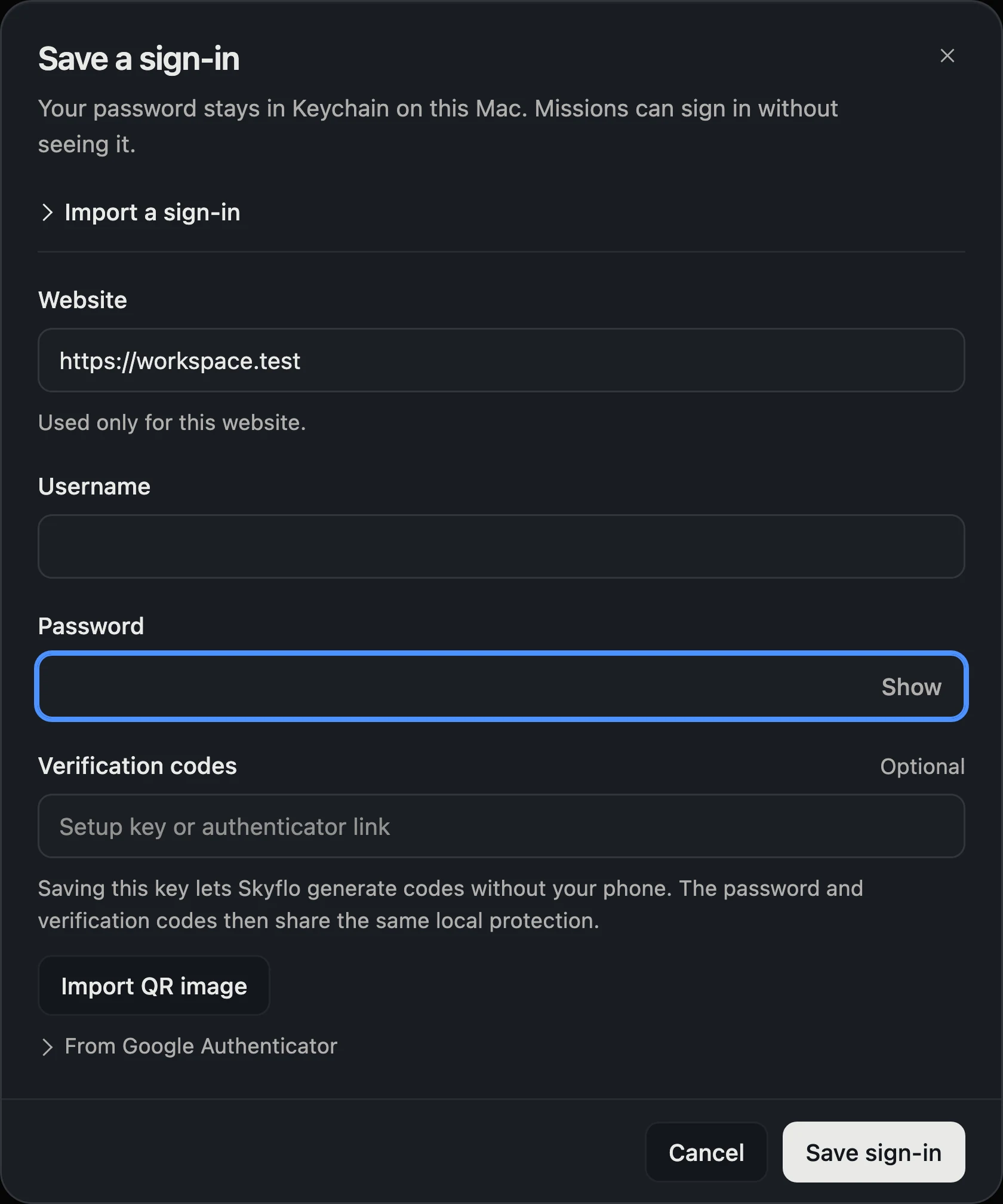
You can save credentials locally on your Mac, connect a 1Password vault, or connect Bitwarden secrets, and move existing logins in with a one-time CSV import.
| Source | Where secrets stay | How Skyflo reads them | Domain rule |
|---|---|---|---|
| Saved on this Mac | macOS Keychain (up to 256 sign-ins; local file holds metadata only) | Entered in a private window and fetched by Skyflo at sign-in | Exact HTTPS site and its subdomains |
| 1Password | Your 1Password vault (vault token in Keychain) | Read live on each use so rotated passwords apply immediately | Exact host and subhosts only; never a sibling or parent domain |
| Bitwarden | Your organization's Bitwarden secrets (token in Keychain) | Read live at the moment of use | The HTTPS site set for it |
Moving from a browser or password manager? Open the private window and import a CSV export from Chrome, Firefox, Safari and Apple Passwords, Bitwarden (individual vault), or 1Password 8 (up to 5 MiB and 5,000 rows; encrypted JSON, ZIP and organization Bitwarden exports are refused). The file is read inside that private window and copied once, not synced.
Saving a sign-in does not let missions use it. Each entry carries its own Missions can use this sign-in switch, and Skyflo re-checks that permission on every sign-in attempt.
What stops a sign-in from leaking to another website?
Every sign-in is bound to the exact HTTPS site you saved it for, and Skyflo stores the login URL without query strings or fragments. One sign-in attempt runs at a time per browser tab.
That boundary matters most when a page misbehaves:
- Before the password is entered: If a login page tries to send the tab to another website, Skyflo blocks the navigation and hands the tab to you.
- After the password is entered: Skyflo follows only the site's own redirects and never types anything into a different website.
How does Skyflo handle email, text and authenticator 2FA codes?
Many portals send a one-time code after the password step. Turn on Read sign-in codes from Mail and Messages and Skyflo looks up the code on your Mac and fills it without exposing it to the model.
- Mail and Messages: Skyflo reads Mail via macOS Automation (when Mail is open with an account) and reads the Messages window via Accessibility (when Messages is open and your Mac is unlocked). Only whether a code was found leaves that step, never the message, sender or code itself.
- Authenticator codes: Add an authenticator setup key (or import a QR image in the private window) to a saved sign-in, and Skyflo stores the key in Keychain and generates the code when needed.
When does a person step in?
Some steps are built for a person: a CAPTCHA, a passkey prompt, or a security question only you can answer. Skyflo does not try to bypass them. It hands the browser tab to you for that step. The same idea runs through computer use that knows when to stop: some steps belong to a person.
Set up website sign-ins
- Download Skyflo for Mac, or update to 1.8.3. Accounts comes with Core and above.
- Open Accounts and choose Add an account: Website sign-in, From 1Password or From Bitwarden.
- Turn on Missions can use this sign-in for each login a mission may use, then choose Check sign-in to test it.
- To fill emailed or texted codes automatically, turn on Read sign-in codes from Mail and Messages and allow Mail and Messages when macOS asks.
Questions
Does ChatGPT, Claude or Skyflo's own agent ever see my password or 2FA code?
No. Skyflo's Mac app fetches the secret and types the password or code into the browser page itself. The agent receives only the landing address and page title, never the password, message, sender or code.
Where are my passwords and vault tokens stored on Mac?
Passwords, authenticator setup keys, and vault connection tokens live in your Mac's Keychain. 1Password and Bitwarden credentials stay inside your vault and are read live at the moment a mission signs in.
Can a mission use any sign-in I save?
No. Saving a sign-in grants no mission access by itself. A mission can sign in only when the per-entry Missions can use this sign-in switch is on, which Skyflo checks again on every attempt.
What happens if a login page redirects to a different website?
Before entering a password, Skyflo blocks any move off the saved HTTPS site and hands the tab to you. After submitting, Skyflo follows only that site's own redirects and never types elsewhere.
Which Skyflo plan includes website sign-ins?
Accounts and website sign-ins come with Core and above (Core, Pro, Max, Team and Team Max). If your plan changes, your saved sign-ins and grants are kept and remain reviewable or removable.
Related: Computer use that knows when to stop · Sign-ins guide · Plans and pricing